


Secure Cleaner
4.45.00 Reviews
App Specs
- Version
- 1.0.1
- Updated On
- License
- Free
- Downloads
- 50,000+
- Developer
- Pervaiz Studio
- Categories
- Tools
- Platform
- Android
Screenshots
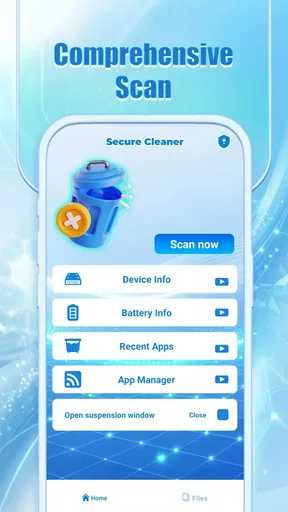
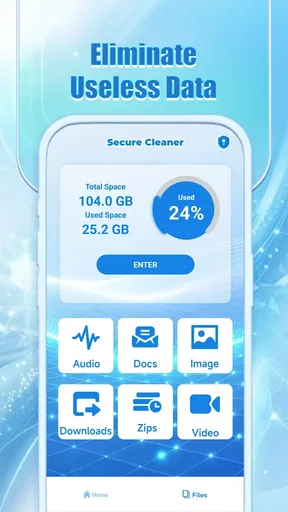
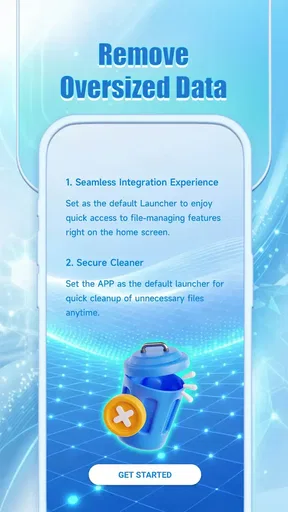
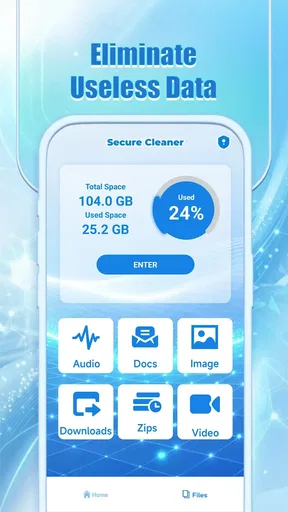
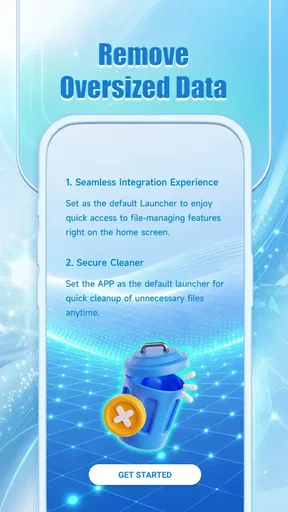
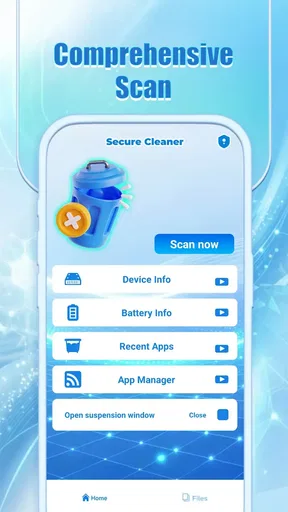
 Analysis by AppCompare
Cleaner apps can be confusing when a phone feels slow but it is not obvious why. I would treat Secure Cleaner as a place to inspect and manage common maintenance tasks, not as a guaranteed fix for every performance issue. That distinction matters: storage pressure, heat, battery drain and privacy concerns are different problems, even when they show up as the same frustrating lag.
Where a cleanup app can help—and where it may not
Secure Cleaner is a free tools app from Pervaiz Studio. Its name and short description point to a security-minded cleaner, and the published version is 1.0.1. It has a 4.5 average from about 47 ratings, with more than 50,000 installs. Those figures make it a familiar option for people looking for a straightforward phone-maintenance tool, though they should not be mistaken for proof that every feature will produce a visible improvement on every device.
My first practical question with any cleaner is not “How many things can it close?” but “What is taking up space or causing trouble?” If your storage is nearly full, reviewing large downloads, duplicate-looking files and media you no longer need is usually more useful than repeatedly running a general cleanup. If the issue is a single app crashing or draining power, checking that app’s own settings and updating or removing it may be the better first move.
This is also why I would avoid treating a cleaner’s result as a diagnosis. A scan can point you toward items worth reviewing, but it cannot know whether every file is disposable or every background process is unnecessary. I would read the result before acting, especially when the phone contains work documents, offline maps, saved messages or media that is hard to replace.
Setup checks that prevent avoidable frustration
Before using a cleaner, I like to make sure the phone itself is ready for maintenance. Check that the operating system is supported; Secure Cleaner requires Android 10 or later. Then confirm that you have a little time to review prompts rather than tapping through them while rushing out the door. The app is rated for Everyone, but that age label does not replace careful decisions about access or what you choose to remove.
On a first run, I would begin with one task instead of enabling every available tool at once. That makes it easier to tell what changed and to undo a choice if the result is not what you wanted. If the app asks for access to files or other phone areas, pause and consider whether the requested access makes sense for the task you are trying to perform. I would not grant access simply because a screen presents it as the quickest route.
If something does not work as expected, start with basic checks: confirm the phone has enough free space to operate, close and reopen the app, and check whether the operating system needs attention. If a scan seems stuck, avoid running repeated scans back to back; give the phone a moment and try again later. These are sensible general troubleshooting steps, not a promise that every issue comes from the cleaner.
Worth Reading Before You Choose

EA SPORTS FC Mobile 26 Is a Bigger Football Game, but It Takes Time

Flipboard Shows What News Apps Must Do Beyond the Feed

Switching to Android Auto Means Rethinking Your Driving Routine

Google Calendar Makes a Crowded Week Easier to Manage

Ludo King Makes the Most of the Minutes Between Plans

Baby Panda World Brings Quick Play to Modern Phones, but Its Game Library Feels Busy
Recovering a sensible workflow
A useful routine is occasional and targeted, rather than a daily ritual. I would use a cleaner when storage is genuinely tight or when I want to review device-maintenance suggestions, then check the phone’s own storage screen to see whether the change mattered. If the phone feels better but the available space has barely changed, that is a cue to look for large videos, downloads or offline content instead of assuming another sweep will solve it.
For a realistic example, imagine you are about to leave for a day trip and your phone warns that storage is low. I would first remove content I can easily replace, such as an old download, and keep irreplaceable photos or trip documents out of a rushed cleanup. Afterward, I would check whether there is enough room for the photos and maps I expect to use. That simple check is more dependable than relying on a vague feeling that the phone has been “optimized.”
It is worth making changes one at a time. If you clear files, close background apps and alter battery settings all in one session, you may not know which action helped—or which one caused an inconvenience. A measured approach is especially useful if you rely on navigation, music, messaging or work apps that may behave differently when background activity is limited.
Secure Cleaner runs on devices with Android 10 or newer, so it is not a fit for older Android phones that fall below that requirement. If you are on a supported device but still run into trouble, checking the app and phone for updates, restarting the device, and trying one task at a time are reasonable first steps. If the underlying problem continues, the phone’s built-in support and settings may give you a clearer route to the cause.
How it compares with built-in tools
For routine storage management, the phone’s built-in settings are the most direct alternative. They usually show which apps and types of content occupy space, and they avoid adding another maintenance app to your device. Secure Cleaner may be more appealing if you prefer a dedicated place to look over several kinds of upkeep, but convenience is not the same as necessity. If all you need is to remove a large download, opening the phone’s storage controls may be quicker.
Compared with a single-purpose battery monitor or security tool, a cleaner aims to bring several maintenance ideas together. That can be handy when you want one starting point, but it also means you should judge each task separately. A general cleaner is not automatically a replacement for your phone’s established security settings, an app’s own battery controls, or a careful review of files before deletion.
One useful trade-off is simplicity versus visibility. A dedicated app may make common tasks feel easier to find, while the built-in tools can show information in the context of the operating system. When a recommendation is unclear, I prefer to check the phone’s own settings before making a change. That extra step is worthwhile if it prevents deleting something important or disrupting an app I depend on.
When the app is not the cause
Heat and sluggishness can have several causes, including demanding use, weak reception, software problems or an aging battery. A cleaner cannot be assumed to fix those underlying conditions. If a phone becomes hot while gaming, recording video or navigating, taking a break and letting it cool is more sensible than repeatedly running maintenance tools. If it heats up during light use or the problem persists, investigate the device and the apps involved rather than treating the cleaner as the answer.
The same caution applies to battery drain. A battery-saving option can be convenient to try, but its effect depends on the phone, settings and what is running. If you rely on timely messages, location services or background syncing, restricting activity may create a new annoyance. I would check which apps are using power in the phone’s settings before changing their behavior, then see whether the adjustment actually helps over a normal day.
Privacy alerts deserve a calm response, too. A warning is a prompt to investigate, not proof that an app is harmful. Check the app’s permissions and settings through the phone, and remove access that you do not consider necessary. If a security concern remains, use trusted device settings or a dedicated security product suited to that concern instead of assuming a general cleaner can settle it by itself.
Who will get the most from it
I can see Secure Cleaner suiting someone who wants a simple maintenance hub and is comfortable reviewing suggestions before acting. It is most useful when you have a clear reason to open it—such as checking storage, reviewing a battery concern or looking over a privacy prompt—not when you expect any cleaner to make an older or heavily loaded phone feel new.
I would skip it if you already manage storage confidently through your phone’s settings, dislike adding utility apps, or want a technical explanation for every performance change. It is also a poor fit for someone who plans to tap through cleanup prompts without checking what they affect. In those cases, built-in controls or a specialist tool for one clearly defined issue may be a better choice.
Secure Cleaner is free, so trying it does not require a purchase, but I would still judge it by whether it helps with a real task rather than keeping it out of habit. Its Everyone rating makes it broadly accessible, while sensible review of cleanup suggestions remains important for users of any age. For me, the best measure is whether I can identify what I changed and whether the phone’s storage or day-to-day behavior improved afterward.
Getting Started with Secure Cleaner
First things first, downloading Secure Cleaner was a breeze. Available for both Android and iOS, this app promises to declutter your digital life in just a few taps. After installing, I was greeted by a simple, user-friendly interface. No fuss, no muss—just what you need when you're trying to tidy up your phone.
A Dive into Features
The app boasts a plethora of features that claim to optimize your phone’s performance. I was particularly excited about the junk file cleaner. You know those random files that apps leave behind like breadcrumbs? Secure Cleaner sweeps them up efficiently. Just a tap, and boom! My storage had more breathing room.
Then there's the CPU cooler, a nifty feature that’s supposed to regulate your phone’s temperature. It sounded a bit sci-fi to me, but after running it, my device genuinely felt less like a hot potato during heavy usage.
Security Perks
What sets this app apart from other cleaners is the security angle. It’s not just about cleaning; it’s also about protecting. The app includes a privacy scanner that checks for vulnerabilities in your apps. I ran a quick scan, and it flagged a few apps that needed attention. It’s like having a watchdog for your phone.
Performance Boost
If you’re like me, you probably open a million apps and forget to close them. Secure Cleaner’s RAM booster feature is a lifesaver here. It closes background apps that might be slowing down your device. After running it, my phone felt like it had just chugged a double espresso—fast and ready to go!
Battery Optimization
Battery life is always a concern, especially when you’re out and about. The app offers a battery saver mode that optimizes settings to extend your phone’s battery life. I noticed a slight improvement, which is always welcome when you’re trying to squeeze out those extra hours on a long day out.
Ease of Use
I’m not a tech wizard, so I appreciate when apps are straightforward. Secure Cleaner is intuitive and doesn’t bombard you with ads, which is a huge win in my book. The layout is clean, and everything is where you’d expect it to be. Even if you’re not tech-savvy, you’ll find your way around effortlessly.
The app also includes a handy notification tool that alerts you about apps draining your battery or hogging memory. It’s like having a personal assistant keeping an eye on your phone’s health.
Final Thoughts
After spending some quality time with Secure Cleaner, I can confidently say it delivers on its promises. It’s not just about cleaning up your phone; it’s about keeping it secure and running smoothly. Whether you’re looking to free up space, enhance security, or just give your phone a little boost, this app has got you covered.
So, if your phone’s feeling sluggish and cluttered, give Secure Cleaner a shot. It might just be the tidy-up you didn’t know you needed!
Pros
- User-friendly interface for easy navigation.
- Quick cleaning process improves device speed.
- Comprehensive junk file removal.
- Effective memory optimization features.
- Regular updates for enhanced performance.
Cons
- Contains ads that may disrupt usage.
- Advanced features require in-app purchases.
- Occasional false positives in file scanning.
- Some features need constant internet connection.
- Limited customer support availability.
FAQs for Secure Cleaner
What is Secure Cleaner, and how does it work?
Secure Cleaner is a mobile application designed to optimize your device's performance. It works by removing junk files, clearing cache, and managing background apps to free up RAM and storage space. The app also includes features for enhancing battery life and protecting your privacy by cleaning sensitive data.
Is Secure Cleaner safe to use on my device?
Yes, Secure Cleaner is safe to use. It does not require unnecessary permissions and uses advanced algorithms to ensure no important files are deleted during the cleaning process. The app is regularly updated to fix bugs and enhance security, ensuring a reliable performance.
How does Secure Cleaner protect my privacy?
Secure Cleaner protects your privacy by removing sensitive data like browsing history, clipboard content, and call logs. It offers a private browsing feature and can also clear your app usage history, ensuring your personal information remains confidential and inaccessible to unauthorized users.
Does using Secure Cleaner improve battery life?
Yes, Secure Cleaner can improve battery life by managing background processes and closing apps that are draining resources unnecessarily. The app identifies and halts power-hungry applications, offering a more efficient power management solution that extends your device's battery life.
Are there any in-app purchases or ads in Secure Cleaner?
Secure Cleaner is available as a free download but may contain ads. The app offers in-app purchases to unlock additional features such as advanced cleaning tools and ad-free usage. These purchases are optional and designed to enhance the overall user experience without being intrusive.


